

Google
Google Customer Reviews
Revoser Teknik Servis266 · Rating from screenshot
These symptoms are not a definitive diagnosis. The device must be assessed.
A systematic approach to fault diagnosis is the foundation of any reliable laptop repair service. In a city like Ankara, where laptops serve as primary tools for work, education, and communication, a malfunctioning device can disrupt daily life significantly.
Understanding how professional technicians identify the root cause of a failure helps users communicate their problems more effectively and appreciate the complexity behind a seemingly simple symptom. This article provides an in-depth technical examination of laptop fault diagnosis, covering the hardware and software components involved, the diagnostic process, and the tools used by professional services such as cagrimerkezi.it.com.
Laptop hardware consists of several interdependent subsystems, each with its own failure modes. The motherboard acts as the central nervous system, connecting the processor, memory, storage, graphics, and peripheral interfaces. When a motherboard fails, the symptoms can vary widely. A laptop that shows no sign of power, with no LEDs and no fan spin, often points to a failure in the primary power circuit.
This could involve a shorted capacitor, a failed voltage regulator module, or a damaged power management IC. In other cases, the laptop may power on for a few seconds and then shut down, indicating a short circuit on one of the power rails or a faulty component drawing excessive current.
Intermittent failures, where the laptop works for a while and then freezes or restarts, are often traced back to cracked solder joints under BGA chips like the CPU or chipset, especially in devices that have experienced thermal stress.
Memory-related faults are among the most common and easiest to identify with the right tools. Random crashes, frequent blue screens with memory management errors, and failure to boot with a series of beeps are classic signs of faulty RAM. The beep codes vary by manufacturer, but a repeating long beep or a pattern of short beeps typically indicates a memory problem.
In modern laptops, RAM is often soldered directly to the motherboard, making diagnosis more critical before any rework is attempted. Technicians use Memtest86 or similar software to run extensive pattern tests on the memory modules. Even a single bad sector can cause system instability, and the test will pinpoint the exact address range of the failure.
For laptops with replaceable SO-DIMM modules, the first step is to reseat the modules and test them one at a time in different slots to isolate the fault.
Storage drive failures present a different set of symptoms. A laptop that takes an unusually long time to boot, frequently hangs during file operations, or displays disk read errors is likely suffering from a failing hard drive or SSD. Traditional hard drives often produce audible signs such as clicking, grinding, or whirring noises, which indicate mechanical failure of the read/write heads or platters.
Solid-state drives, being silent, rely on electronic indicators. The SMART data, accessible through tools like CrystalDiskInfo, provides a wealth of information including reallocated sector counts, pending sector counts, and wear leveling indicators. A sudden increase in these values is a strong predictor of imminent failure.
NVMe SSDs are particularly sensitive to overheating; when the controller reaches a critical temperature, it triggers thermal throttling, drastically reducing read and write speeds and causing system stuttering. Professional diagnosis includes checking the drive temperature under load and verifying that the thermal pad between the SSD and the motherboard is making proper contact.
Graphics-related issues are common in laptops used for gaming or graphic design. Symptoms include visual artifacts such as horizontal or vertical lines, screen flickering, color distortion, or a completely black display. These problems can originate from the GPU itself, the video memory, or the display cable. In many modern laptops, the GPU is soldered onto the motherboard as a BGA component.
Over time, repeated heating and cooling cycles can cause the solder balls to crack, leading to intermittent or permanent failure. A technician will first rule out a simple display cable issue by connecting an external monitor. If the external display works perfectly, the problem is likely in the LCD panel, the eDP cable, or the connector on the motherboard.
If the external display shows the same artifacts, the fault lies in the GPU or its associated memory. Running a GPU stress test like FurMark can help reproduce the failure under controlled conditions, allowing the technician to monitor temperatures and voltages in real time.
Battery and charging circuit problems are another frequent cause of service calls. A laptop that only works when plugged in, or one that charges very slowly or not at all, may have a defective battery, a faulty charging port, or a failed charging IC on the motherboard.
The battery management system communicates with the motherboard via the SMBus protocol, and a communication failure can prevent charging even if the battery itself is healthy. Professional diagnosis involves measuring the voltage at the battery connector with a multimeter, checking the resistance of the charging MOSFETs, and verifying the presence of the main power rail.
A swollen battery is a critical safety hazard and must be identified immediately. Physical inspection of the battery pack for bulging, combined with a check of the touchpad area for upward pressure, is a standard part of the initial examination.
Software faults often mimic hardware failures, making a systematic diagnostic process essential. A laptop that crashes during boot may have a corrupted operating system, a faulty driver, or malware, rather than a failing hard drive. The first step in software diagnosis is to attempt to boot into Safe Mode.
If the system runs stably in Safe Mode, the problem is likely caused by a third-party driver or startup program. Technicians use tools like System File Checker to repair corrupted system files and check the Windows Event Viewer for error codes that point to the failing component. Driver conflicts are particularly common after major Windows updates, especially for graphics and network adapters.
Rolling back the driver or performing a clean installation often resolves the issue. Malware infections, particularly rootkits that embed themselves in the kernel, can cause system instability that is difficult to diagnose without specialized scanning tools. A full system scan from a bootable USB drive is sometimes necessary to remove deeply embedded threats.
Thermal issues are a leading cause of performance degradation and hardware failure in laptops. The compact design of a laptop limits the capacity of the cooling system, making it vulnerable to dust accumulation, dried-out thermal paste, and fan bearing wear. Symptoms of thermal problems include sudden performance drops during intensive tasks, loud fan noise, and unexpected shutdowns.
The CPU and GPU have built-in thermal protection mechanisms that throttle performance or shut down the system when temperatures exceed safe limits. A professional technician uses a thermal camera to identify hot spots on the motherboard and compare them against expected values. The cooling system is inspected for dust blockage in the fan and heatsink fins.
The thermal paste between the CPU/GPU and the heatsink is checked for dryness or cracking. In some cases, the heat pipes themselves can fail if they develop a leak, losing their ability to transfer heat effectively.
The professional fault diagnosis process follows a structured workflow. It begins with a detailed interview with the user to understand the exact symptoms, when they started, and any events that may have triggered them, such as a drop, liquid spill, or software update. The technician then performs a physical inspection of the laptop, looking for signs of damage, corrosion, or wear.
The charging port is checked for looseness or burn marks. The keyboard and touchpad are tested for proper response. The display hinges are examined for tightness, as a loose hinge can pinch and damage the display cable over time. The battery is inspected for swelling, and the cooling vents are checked for dust buildup.
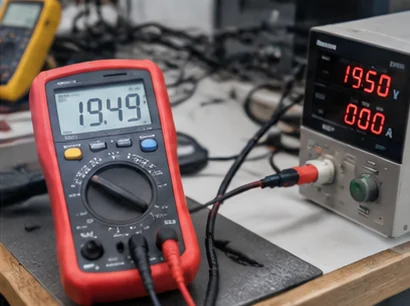
After the physical inspection, the technician proceeds to electrical testing. A multimeter is used to measure continuity and voltage at key test points on the motherboard. A lab power supply is connected to the motherboard to provide a controlled current and observe the power draw.
A normal idle current is typically in the range of 0.2 to 0.5 amps, while a short circuit will draw several amps immediately, causing the power supply to enter current limit mode. This test quickly identifies whether the motherboard is receiving power and whether there is a short on the main power rail.
If the laptop powers on, the technician moves to software-based diagnostics. The system is booted from a diagnostic USB drive to avoid interference from a potentially corrupted operating system. Memory tests, storage drive health checks, and CPU stress tests are run sequentially. Each test isolates a specific subsystem, allowing the technician to narrow down the faulty component.
For example, if the system passes the memory test but crashes during the CPU stress test, the problem is likely related to the processor or its power delivery circuit. If the system crashes only when the GPU is under load, the graphics subsystem is the primary suspect.
The final step is a comprehensive connectivity test. All USB ports are tested with a USB test card that checks for proper voltage on the power and data lines. The HDMI and DisplayPort outputs are tested with an external monitor. The audio jack is tested with headphones. The Wi-Fi and Bluetooth modules are checked for driver detection and signal strength.
Any port that fails to function correctly is noted in the diagnostic report.
Choosing a professional service in Ankara for laptop fault diagnosis requires careful consideration. A reliable service will have the necessary test equipment, including multimeters, lab power supplies, thermal cameras, and diagnostic software. The technicians should be able to explain the diagnostic process in clear terms and provide a written report of their findings.
Transparency is key; a reputable service will not replace parts without first confirming the diagnosis with the customer. They will also respect data privacy and take precautions to protect the user's files during testing.
Attempting to diagnose complex laptop faults without proper training and equipment carries significant risks. Applying incorrect voltages during testing can damage sensitive components. Opening the laptop without proper grounding can expose internal circuits to electrostatic discharge. Attempting to reflow a BGA chip with a heat gun can cause more harm than good, often lifting pads or damaging surrounding components.
For these reasons, any fault that involves the motherboard, power circuit, or BGA components should be handled by a professional.
A well-executed fault diagnosis saves time, money, and frustration. It prevents unnecessary replacement of healthy components and ensures that the actual problem is addressed correctly. For laptop users in Ankara, understanding the technical aspects of fault diagnosis helps in selecting a competent service provider and in communicating the issue accurately.
Whether the problem is a simple software glitch or a complex motherboard failure, a systematic diagnostic approach is the only reliable path to a lasting repair.
Timing depends on the fault and required tests; the service will provide details after assessment.
Contact our Ankara service centre to confirm current DHL shipping and packaging conditions.
Visit our Ankara service centre or contact us about DHL shipping.
266 · Rating from screenshot
Haritayı yüklemek tarayıcınızı Google sunucularına bağlar ve çerez kullanımına neden olabilir.
Çerez PolitikasıEti Mah. Toros Sok. No:41/A, Sıhhiye, Çankaya / Ankara
Visit our Ankara repair centre or contact us about nationwide DHL shipping.