

Google
Google Customer Reviews
Revoser Teknik Servis266 · Rating from screenshot
These symptoms are not a definitive diagnosis. The device must be assessed.
Laptop batteries are the single most critical component for mobility, yet they are also the first part to show significant wear. Over time, the chemical structure inside lithium-ion cells degrades, leading to reduced runtime, swelling, or complete failure. For users in Ankara, understanding the technical process behind battery diagnostics and replacement is essential for both cost management and safety.
This article provides a detailed technical overview of laptop battery technology, fault diagnosis, and the replacement process, designed to help you make informed decisions without unnecessary intervention.
Technical Foundation: Laptop Battery Structure and Operation
Modern laptops predominantly use Lithium-Ion (Li-ion) and Lithium-Polymer (Li-Po) batteries. These chemistries offer high energy density, a low self-discharge rate, and no memory effect. However, they also have specific limitations and inherent risks due to their chemical nature.
Cell Configuration and Voltage
Each individual lithium-ion cell has a nominal voltage between 3.6V and 3.85V. When fully charged, this rises to 4.2V, and in some high-voltage cells, it can reach 4.4V. Laptop battery packs are constructed by connecting multiple cells in series and parallel configurations. A series connection increases voltage, while a parallel connection increases capacity, measured in milliampere-hours (mAh) or ampere-hours (Ah).
For example, a 4-series (4S) configuration yields a nominal voltage of 14.4V or 15.4V, depending on the cell type.
Capacity and Energy
Capacity is expressed in mAh or Ah, but the true energy storage is measured in watt-hours (Wh). The formula is Wh = (Voltage x Capacity) / 1000. A battery rated at 15.4V and 5000mAh (5Ah) stores approximately 77Wh. This value directly influences the physical size and weight of the battery pack.
Higher Wh batteries are generally larger and heavier, which is a key consideration when selecting a replacement.
Battery Management System (BMS)
Every lithium-ion battery pack contains a Battery Management System (BMS). This small circuit board is critical for safety and communication. It monitors individual cell voltages, prevents overcharge and over-discharge, provides temperature protection, and performs cell balancing. The BMS also communicates with the laptop via protocols like SMBus (System Management Bus) or I2C, reporting data such as battery health, cycle count, temperature, and remaining capacity.
A faulty BMS can render a battery completely unusable, even if the cells themselves are healthy.
Cycle Life and State of Health (SoH)
The cycle life of a battery is defined by the number of complete charge and discharge cycles it can undergo before its capacity significantly degrades. Lithium-ion batteries typically lose 20-30% of their original capacity after 300-500 full cycles. Usage habits, ambient temperature, and charge voltage heavily influence this lifespan. Keeping a battery constantly at 100% charge or fully discharging it accelerates chemical degradation.
State of Health (SoH) is a percentage that indicates the remaining usable capacity compared to the original design capacity. When SoH drops below 80%, battery replacement is generally recommended to restore adequate runtime.
Fault Diagnosis: Identifying Battery Problems
Battery-related issues can be hardware or software based. Accurate diagnosis prevents unnecessary part replacement and saves time. The following symptoms and diagnostic methods are typical for battery faults.
Physical Symptoms and Visual Inspection
Swelling is the most common and dangerous physical symptom. Look for a bulging battery pack, a lifted trackpad, or cracks in the laptop chassis. If swelling is present, the battery must be replaced immediately and disposed of safely. Leakage or corrosion is rare but may present as a chemical odor or greenish residue. Physical damage from drops or impacts can also compromise the battery housing.
Software Diagnostic Methods
Operating systems and third-party tools provide detailed battery health information. These methods are safe and can be performed directly on the computer.
Windows Battery Report: Open a command prompt and type "powercfg /batteryreport". This generates an HTML report containing design capacity, full charge capacity, cycle count, and historical charge/discharge data. The ratio of full charge capacity to design capacity gives the SoH.
Third-Party Applications: Tools like HWMonitor, BatteryInfoView, or HWiNFO display real-time voltage, current, power consumption, and cell temperatures. This data is useful for analyzing battery behavior under load.
Manufacturer Utilities: Many laptop manufacturers provide their own battery management software. For example, Lenovo Vantage or Dell Power Manager offer charge limits and health status information.
Hardware Diagnostics: Multimeter and BMS Error Codes
Hardware diagnostics require basic electronics knowledge and a multimeter. These procedures carry risk and should only be performed by experienced individuals.
Measuring Output Voltage: Measure the voltage between the main output pins (typically B+ and B-) of the battery connector. If the voltage is significantly below the nominal value (e.g., 5V instead of 14.4V), the BMS may be in protection mode, or a cell may be faulty.
BMS Error Codes: Some batteries transmit error codes over the SMBus. These codes indicate issues like over-temperature, cell imbalance, or short circuits. Reading them requires a specialized adapter and software.
Internal Resistance Test: Internal resistance increases over time. High resistance leads to excessive heat generation and efficiency loss during charge and discharge. This test requires professional equipment.
Risks of Misdiagnosis
Many issues mistaken for battery failure are actually caused by the motherboard, charging circuit, or power adapter. For example, a laptop that does not charge may have a faulty DC jack or a failed charge controller IC. Short runtime can be caused by high-power background applications, incorrect power settings, or degraded thermal paste causing thermal throttling.
If the system does not recognize the battery, there may be a broken or shorted communication line (SMBus) between the BMS and the motherboard. Therefore, all possibilities should be eliminated before deciding on a battery replacement. We do not recommend risky electrical intervention on the charging circuit or motherboard, as this requires experience and may void any remaining warranty.
The Laptop Battery Replacement Process: A Step-by-Step Guide
Battery replacement requires the correct tools and careful work. The following steps are a general guide and may vary by laptop model.
Preparation
Data Backup: Before any hardware intervention, back up critical data. Although rare, static electricity or a short circuit during battery removal could potentially damage the motherboard.
Disconnect Power: Turn off the laptop, unplug the AC adapter, and if possible, press and hold the power button for 5-10 seconds to drain residual charge from the motherboard circuits.
Anti-Static Precautions: Use an anti-static wrist strap or touch a grounded metal surface to protect sensitive components. Work in a dry, carpet-free environment.
Removing the Old Battery
Most modern laptops have internal batteries accessed by removing the bottom cover. Older models may have easily removable external batteries. For internal batteries, the typical steps are:
Use the appropriate screwdriver (usually Phillips #0 or Torx T5) to remove the bottom cover screws. Note the screw sizes and positions.
Carefully lift the cover. A plastic spudger may be needed to release clips.
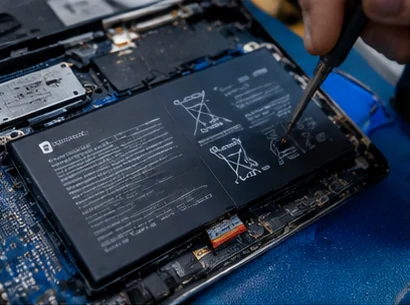
Locate the battery connector on the motherboard. Release any locking mechanism and gently pull the connector cable. Never pull on the wires.
Remove the screws securing the battery to the chassis. Some batteries are also held in place with adhesive. A small amount of isopropyl alcohol can help dissolve the adhesive.
Lift the battery out of its compartment. If the battery is swollen, it may be pressing against the cover. Avoid using excessive force.
Installing the New Battery
Correct Model Selection: The new battery must match the original in physical dimensions, connector type, voltage, and capacity. Check the manufacturer part number (FRU/PN).
Pin Alignment and Connector: Ensure the connector is oriented correctly and that no pins are bent or corroded. Press the connector firmly until it clicks into place.
Securing the Battery: Place the battery in its compartment and tighten the securing screws. Do not overtighten.
Closing the Cover: Reattach the bottom cover and tighten the screws in the correct order to prevent gaps or warping.
First Charge and Battery Gauge
Follow the manufacturer’s instructions for the exact model when charging a replacement battery. Gauge calibration may be useful for an inaccurate reading, but it cannot restore chemical capacity. Do not deliberately deep-discharge a battery or leave it depleted. This is not a reliable way to reset protection circuitry. Stop charging if the battery is swollen, damaged or unusually hot, and seek technical assistance.
Considerations for Battery Replacement Service in Ankara
Ankara has many technical service centers and computer repair shops, but quality and reliability vary. Even a seemingly simple battery replacement can cause serious damage if performed incorrectly. The following points are important to consider.
Differences Between Authorized and Independent Services
Authorized services typically use original spare parts and offer a warranty period. However, labor and part costs are higher. If your laptop is under warranty, contacting an authorized service first is recommended.
Independent services may offer lower prices. However, the authenticity and quality of the batteries used can vary. Some independent services use high-quality OEM products, while others may offer low-quality or remanufactured batteries.
Regardless of the service you choose, request an invoice for the work performed and a warranty document for the battery. Checking the serial number and production date on the battery can help verify that it is new.
The Role of Cagrimerkezi.it.com as a Referral Platform
Platforms like Cagrimerkezi.it.com help users find reliable technical services. This type of service can save time in finding the right address. Referrals from such platforms often consider user reviews and service history. However, it is important to remember that these platforms are not direct service providers and cannot be held responsible for the service provided.
They act as a bridge between the user and the service center.
What to Ask as a Customer
Confirm your laptop model and battery part number before going to the service.
Ask whether the replacement battery is new and original.
Request a battery health report (SoH) and a charge/discharge test after the work is completed.
Ensure your invoice includes the battery brand, model, serial number, and warranty period.
Confirm that the old, swollen battery will be disposed of safely. Lithium batteries must be sent to licensed recycling facilities to prevent environmental harm.
Conclusion
Laptop battery replacement is a safe and effective procedure when performed with correct diagnosis and proper technical knowledge. In Ankara, understanding the technical details helps you avoid unnecessary costs. First, use software and hardware diagnostic methods to identify the source of the problem. If the battery life is truly exhausted or physical damage is present, replacement is necessary.
During replacement, following safety rules, taking anti-static precautions, and using the correct battery model are critical. When evaluating authorized or independent service options, focus not only on price but also on the quality of the parts used and the warranty offered. Platforms like Cagrimerkezi.it.com can assist you in finding the right service.
Being an informed user extends the life of your device and minimizes potential safety risks.
Stop using and charging it and seek service assistance.
Contact our Ankara service centre to confirm current DHL shipping and packaging conditions.
Visit our Ankara service centre or contact us about DHL shipping.
266 · Rating from screenshot
Haritayı yüklemek tarayıcınızı Google sunucularına bağlar ve çerez kullanımına neden olabilir.
Çerez PolitikasıEti Mah. Toros Sok. No:41/A, Sıhhiye, Çankaya / Ankara
Visit our Ankara repair centre or contact us about nationwide DHL shipping.