

Google
Google Customer Reviews
Revoser Teknik Servis266 · Rating from screenshot
These symptoms are not a definitive diagnosis. The device must be assessed.
Laptop overheating is one of the most common performance issues that users face, yet it is frequently misunderstood. Many people assume that a slow or randomly shutting down laptop is a sign of a failing motherboard or a virus. In reality, the root cause is often a degraded thermal system.
At our independent repair center in Ankara, we see a steady flow of devices that have been running hot for months, with fans that are either clogged, failing, or simply unable to keep up with the heat generated by modern processors.
Understanding how the thermal management system works, what can go wrong, and how to diagnose these problems is essential for anyone who wants to extend the life of their machine.
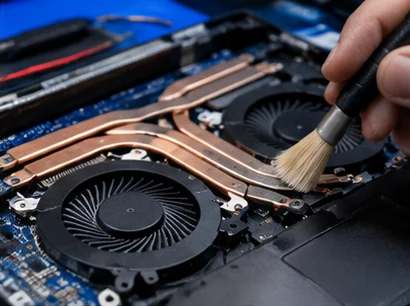
The thermal system in a laptop is a closed loop that relies on three main components: the fan or fans, the heat pipes, and the thermal interface material between the processor and the heatsink.
The fan draws cool air into the chassis, pushes it across a fin stack that is attached to the heat pipes, and then expels the hot air out of the exhaust vents.
The heat pipes are sealed copper tubes containing a small amount of fluid that vaporizes when heated, travels to the cooler end, condenses, and then returns to the hot end via capillary action. This phase change process is extremely efficient at moving heat away from the CPU and GPU.
The thermal paste or thermal pad fills the microscopic gaps between the processor die and the heatsink base, ensuring that heat transfers smoothly without air pockets acting as insulators.
When any part of this system fails, the laptop will struggle to maintain safe operating temperatures. The most common fault is dust accumulation. Over time, dust and lint are pulled into the fan and fin stack. In Ankara, where dry and dusty conditions are common, this buildup can be significant even after a few months of use.
The dust clogs the fins, reducing airflow, and it also coats the fan blades, throwing off their balance and making them noisier. A fan that is struggling to spin due to dust buildup will eventually wear out its bearings. The second most common issue is dried or pumped-out thermal paste.
The original thermal paste used by manufacturers is often of average quality and can harden or become brittle after two to three years. When the paste loses its ability to fill the microscopic gaps, air pockets form, and the heat transfer efficiency drops dramatically. The third issue is a failing fan bearing. Fans are mechanical parts with a finite lifespan.
When the bearing wears down, the fan may produce a grinding or rattling noise, or it may stop spinning entirely.
The symptoms of a failing thermal system are usually progressive. The first sign is often increased fan noise. The laptop will spin its fans at high speed more frequently, even during light tasks like web browsing or document editing. This is because the internal temperature is higher than it should be, so the system is trying to compensate. The next symptom is thermal throttling.
Modern processors have built-in protection mechanisms that reduce their clock speed when the temperature exceeds a certain threshold, typically around 95 to 100 degrees Celsius for Intel and AMD CPUs. When throttling occurs, the laptop will feel sluggish, stutter during video playback, or take longer to compile code or render images. In severe cases, the laptop may shut down abruptly without warning.
This is a critical safety feature designed to prevent permanent damage to the processor. If you are experiencing random shutdowns during gaming, video editing, or even during a Zoom call, the thermal system should be the first thing you check.
Diagnosing a thermal problem does not require expensive equipment. The first step is to monitor the temperatures using software. Tools like HWMonitor, Core Temp, or Open Hardware Monitor can read the internal temperature sensors of the CPU and GPU. A healthy laptop at idle should show temperatures between 30 and 45 degrees Celsius, depending on the ambient room temperature.
Under full load, such as during a stress test or a demanding game, temperatures should stay below 90 degrees Celsius. If you see temperatures hitting 95 degrees or higher within seconds of starting a load, that is a strong indicator of a thermal paste issue or a clogged heatsink. The second diagnostic step is to check the fan behavior. Listen for unusual noises.
A grinding sound indicates a bearing failure. A clicking sound may mean that a wire or a piece of debris is hitting the fan blades. You can also place your hand near the exhaust vent.
If the air coming out is barely warm while the internal temperatures are high, the heat is not being transferred to the heatsink properly, which points to a paste problem. If the air is hot but the fan is not spinning, the fan itself is likely dead.
It is important to note that not all laptops are designed the same way. Some ultrabooks have their fans soldered to the motherboard or use a proprietary connector that is difficult to source. Other gaming laptops have dual fans and multiple heat pipes that are shared between the CPU and GPU. The disassembly process varies greatly between brands and models.
For example, a Lenovo ThinkPad may require removing the entire bottom panel and disconnecting the battery before touching the heatsink, while a Dell XPS may require removing the motherboard to access the fan on the other side. This is why we emphasize that thermal maintenance is not a one-size-fits-all procedure.
Attempting to remove a heatsink without the correct screwdriver or without understanding the screw tightening sequence can damage the processor or the motherboard traces.
When we perform fan and thermal maintenance at our center in Ankara, we follow a systematic process. First, we open the chassis and inspect the fan and heatsink assembly visually. We check for dust clogs, bent fins, and signs of corrosion. We then remove the fan and clean it separately using compressed air and a soft brush.
If the fan bearing is worn, we replace the fan with a new OEM or high-quality compatible unit. We never reuse a fan that shows signs of mechanical wear because it will fail again within months. Next, we remove the heatsink from the motherboard. This requires careful handling because the thermal paste may have hardened and glued the heatsink to the processor.
We gently twist the heatsink to break the bond before lifting it straight up. Once removed, we clean the old thermal paste from both the processor die and the heatsink base using isopropyl alcohol and lint-free wipes. We then apply a fresh, high-quality thermal paste. The application method depends on the processor size.
For a standard CPU die, a small pea-sized drop in the center is sufficient. For larger dies, such as those on high-end gaming GPUs, we use a thin, even spread. We then reinstall the heatsink following the manufacturer's specified screw tightening pattern, usually a cross pattern, to ensure even pressure.
Finally, we reassemble the laptop and run a stress test to verify that the temperatures have dropped to acceptable levels.
One question we often hear is whether thermal paste replacement is necessary if the laptop is still under warranty. The answer depends on the manufacturer. Some brands allow user maintenance without voiding the warranty, while others require that all repairs be done by an authorized service center. If your laptop is still under warranty, we recommend checking the terms before proceeding.
If the warranty has expired, which is the case for most laptops that are two to three years old, thermal paste replacement is one of the most effective ways to restore performance. Another common question is about the use of liquid metal thermal compounds.
Liquid metal offers superior thermal conductivity compared to standard paste, but it is electrically conductive and can cause short circuits if it spills onto the motherboard components. We only recommend liquid metal for experienced users who understand the risks and are willing to apply protective coatings around the CPU die.
For the vast majority of users, a high-quality non-conductive thermal paste provides more than enough performance improvement.
Shipping is an option for customers who are not located in Ankara or who prefer not to visit our center in person. If you choose to ship your laptop to us, we recommend using a sturdy box with ample padding. Remove any external accessories such as USB dongles or external drives.
If possible, remove the battery if it is easily accessible, as lithium-ion batteries have shipping restrictions. We will diagnose the issue, provide a detailed explanation of what needs to be done, and proceed only with your approval. We then ship the laptop back to you after the repair is complete. For customers in Ankara, we offer direct drop-off and pickup at our location.
We always encourage an in-person visit if possible, because it allows us to show you the condition of the fan and heatsink before and after the service.
There are several misconceptions about laptop cooling that we encounter regularly. One is that using a cooling pad eliminates the need for internal thermal maintenance. Cooling pads can help by providing additional airflow to the bottom of the laptop, but they cannot fix a clogged heatsink or dried thermal paste.
The internal thermal system is the primary path for heat removal, and if it is compromised, no amount of external cooling will fully compensate. Another misconception is that cleaning the fan with compressed air without opening the laptop is sufficient.
While blowing air into the exhaust vent can dislodge some surface dust, it often pushes the dust deeper into the fin stack or into the fan bearing. The only proper way to clean a laptop fan is to open the chassis and physically remove the dust from the fins and the fan blades.
A third misconception is that thermal paste should be replaced every year. In reality, high-quality thermal paste can last three to five years before it starts to degrade. The frequency of replacement depends on the operating temperatures and the quality of the original paste.
If you run your laptop at high loads for many hours every day, you may need to replace the paste more often.
From a technical standpoint, the relationship between fan speed, temperature, and power consumption is governed by the laptop's firmware. The embedded controller, which is a small microcontroller on the motherboard, reads the temperature sensors and adjusts the fan speed accordingly. This is known as the fan curve. Some laptops allow you to customize the fan curve through software, but most do not.
If the fan curve is too aggressive, the laptop will be noisy. If it is too conservative, the laptop will run hot. When we replace a fan, we ensure that the new fan is compatible with the original fan curve.
Using a fan with a different electrical specification can cause the embedded controller to misread the fan speed, leading to errors or incorrect cooling behavior. This is why we always source fans that match the original part number or are verified to be electrically and mechanically compatible.
Another important aspect of thermal maintenance is the condition of the heat pipes. Heat pipes can fail if they develop a leak. This is rare but does happen, especially in laptops that have been physically dropped or subjected to extreme pressure. When a heat pipe fails, the fluid inside escapes, and the pipe can no longer transfer heat effectively.
The symptom is a hotspot on the heatsink near the processor, while the rest of the heatsink remains cool. Unfortunately, heat pipes are usually integrated into the heatsink assembly and cannot be replaced individually. If a heat pipe fails, the entire heatsink assembly must be replaced. This is a more expensive repair, but it is necessary to restore proper cooling.
We also see laptops that have been damaged by improper thermal maintenance. For example, using a metal tool to scrape off old thermal paste can scratch the copper surface of the heatsink or the processor die. Scratches create air gaps that reduce heat transfer. Using too much thermal paste can also be counterproductive.
Thermal paste is meant to fill microscopic gaps, not to act as a thick layer. Excess paste can squeeze out the sides when the heatsink is tightened, potentially contaminating the motherboard or causing electrical shorts. Using the wrong type of thermal pad, such as one that is too thick, can prevent the heatsink from making proper contact with the processor.
These are all reasons why we recommend professional service for anyone who is not comfortable with the disassembly and cleaning process.
For businesses and professionals who rely on their laptops for daily work, thermal maintenance is not just about performance. It is also about reliability and longevity. A laptop that runs hot will experience accelerated wear on its internal components. The battery degrades faster at high temperatures. The solder joints on the motherboard can develop micro-cracks over time due to thermal expansion and contraction.
The display panel can also be affected if the heat is directed towards the screen. By keeping the thermal system in good condition, you are protecting your investment and reducing the likelihood of unexpected failures.
In Ankara, where summer temperatures can exceed 35 degrees Celsius, the ambient temperature plays a significant role in laptop cooling. A laptop that is already struggling with a clogged fan or dried paste will be much more likely to overheat in a warm room.
If you are using your laptop in a non-air-conditioned environment, we recommend paying extra attention to the fan noise and the temperature readings. If you notice that the fan is running at maximum speed for extended periods, it is a sign that the thermal system needs attention.
To summarize, the fan and thermal system is a critical component of any laptop. Dust accumulation, dried thermal paste, and failing fan bearings are the most common issues. Symptoms include increased fan noise, thermal throttling, and random shutdowns. Diagnosis can be done with temperature monitoring software and a simple visual and auditory inspection.
Proper maintenance involves opening the chassis, cleaning the fan and heatsink, replacing the thermal paste, and replacing the fan if necessary. We provide this service at our independent repair center in Ankara, and we also accept shipped devices from other locations. We do not claim to be an authorized service provider for any brand, and we do not have branches outside Ankara.
Our goal is to help you get the most out of your laptop by keeping its cooling system in optimal condition. If you are experiencing any of the symptoms described in this article, we encourage you to have your laptop inspected as soon as possible. Delaying thermal maintenance can lead to more serious and costly damage down the line.
No. Cooler materials, manufacturer design and electrical safety must be considered.
Contact our Ankara service centre to confirm current DHL shipping and packaging conditions.
Visit our Ankara service centre or contact us about DHL shipping.
266 · Rating from screenshot
Haritayı yüklemek tarayıcınızı Google sunucularına bağlar ve çerez kullanımına neden olabilir.
Çerez PolitikasıEti Mah. Toros Sok. No:41/A, Sıhhiye, Çankaya / Ankara
Visit our Ankara repair centre or contact us about nationwide DHL shipping.