

Google
Google Customer Reviews
Revoser Teknik Servis266 · Rating from screenshot
These symptoms are not a definitive diagnosis. The device must be assessed.
Upgrading the internal storage and memory of a laptop is one of the most effective ways to restore performance and extend the usable life of a machine that is no longer keeping up with modern software demands.
For users in Ankara, understanding the technical process, the symptoms that indicate a need for an upgrade, and the diagnostic steps involved is essential before making a decision. This article provides a detailed technical overview of SSD and RAM upgrades, focusing on the practical considerations for laptop owners in the region.
The primary reason for upgrading to a Solid State Drive, or SSD, is to address slow boot times, sluggish application loading, and overall system lag that is often caused by a traditional Hard Disk Drive, or HDD. An HDD relies on spinning magnetic platters and a moving read/write head, which creates a physical bottleneck.
When the operating system needs to access data, it must wait for the platter to spin to the correct position and for the head to move to the correct track. This mechanical delay, known as latency, is the main source of the slow performance users experience. An SSD, by contrast, uses NAND flash memory chips with no moving parts.
Data access is nearly instantaneous because the controller can address any memory cell directly. This difference is most noticeable during the boot process, where an HDD-based system might take a minute or more to load Windows, while an SSD-based system can be ready in under fifteen seconds.
Symptoms of a failing or overloaded HDD go beyond simple slowness. Users may hear clicking, grinding, or whirring noises from the laptop chassis. These sounds indicate that the internal mechanics are struggling or failing. Another common symptom is the operating system freezing for several seconds while the drive attempts to read or write data. File explorer may become unresponsive when browsing large folders.
In more severe cases, the system may fail to boot entirely, displaying error messages about a missing operating system or a disk read error. These are clear indicators that the drive is either failing or has become too fragmented and slow to function reliably. Diagnostic software can confirm the health of an HDD by reading its Self-Monitoring, Analysis, and Reporting Technology, or SMART, data.
Parameters such as reallocated sector count, current pending sector count, and uncorrectable sector count are critical. A high number of reallocated sectors means the drive has detected physical damage and has moved data to reserved areas, which is a strong sign of impending failure.
When considering an SSD upgrade, the first technical step is identifying the correct form factor and interface for the laptop. The two most common types for laptops are the 2.5-inch SATA drive and the M.2 form factor. The 2.5-inch SATA SSD is a direct replacement for a traditional laptop HDD. It uses the same SATA interface and power connector, making it a straightforward swap.
The M.2 form factor is smaller and connects directly to the motherboard. However, M.2 drives are not all the same. They can use either the SATA protocol or the NVMe protocol over the PCI Express bus. An M.2 SATA drive performs similarly to a 2.5-inch SATA SSD, while an M.2 NVMe drive offers significantly higher sequential read and write speeds.
It is critical to check the laptop's specifications to determine which M.2 key type is supported. Most modern laptops use the M key for NVMe drives or the B+M key for SATA drives. Installing an NVMe drive into a slot that only supports SATA will not work, and vice versa.
The laptop's chipset and BIOS must also support the NVMe protocol for it to function as a boot drive.
The upgrade process for a 2.5-inch drive involves removing the bottom panel of the laptop, disconnecting the old drive from the SATA and power connectors, removing the mounting bracket or screws, and installing the new SSD in reverse order. For M.2 drives, the process is simpler.
The drive is inserted at a slight angle into the slot and then pressed down and secured with a single screw. After the physical installation, the laptop will not boot from the new drive because it is blank. The operating system must be installed fresh, or the old drive must be cloned.
Cloning is a process where the entire contents of the old drive, including the operating system, applications, and files, are copied sector by sector to the new SSD. This requires a USB-to-SATA adapter or an external enclosure for the old drive, and cloning software.
The new SSD must be connected to the laptop via USB, the cloning software is used to select the source and target drives, and the process runs. After cloning, the new SSD is installed internally, and the laptop should boot normally. If the laptop does not boot, the BIOS boot order may need to be changed to prioritize the new drive.
RAM, or Random Access Memory, is the other critical component for performance. While the SSD addresses storage speed, RAM addresses multitasking capacity and application responsiveness. When a laptop runs out of available RAM, the operating system begins using a portion of the SSD or HDD as virtual memory, known as the page file or swap space.
This is dramatically slower than physical RAM because the storage drive, even an SSD, has much higher latency than RAM. The result is system stuttering, application crashes, and extreme slowness when switching between programs.
Symptoms of insufficient RAM include the system becoming unresponsive when multiple browser tabs are open, video editing software crashing during rendering, or virtual machines refusing to start. The operating system itself may display warnings about low memory. Users can check RAM usage in the Task Manager on Windows or the Activity Monitor on macOS.
If the memory usage consistently approaches or reaches 100 percent during normal use, an upgrade is necessary. Another diagnostic method is to check the size of the page file. A very large page file indicates that the system is relying heavily on virtual memory, which is a performance bottleneck.
Before purchasing new RAM, the laptop's specifications must be verified. The type of RAM is determined by the motherboard and chipset. Common types for laptops include DDR3, DDR3L, DDR4, and DDR5. These are not interchangeable. A DDR4 module will not fit into a DDR3 slot, and the voltage requirements differ. The speed of the RAM, measured in megahertz, is also important.
The motherboard will run the RAM at the highest speed it supports, which may be lower than the module's rated speed. Installing a 3200 MHz module into a system that only supports 2666 MHz will result in the RAM running at 2666 MHz.
It is generally safe to install faster RAM than the system supports, as it will downclock, but mixing different speeds can cause instability.
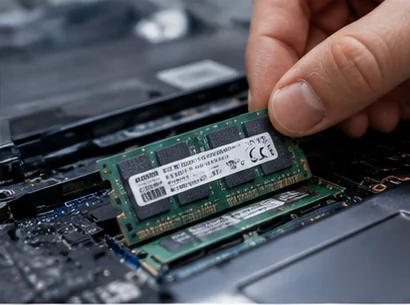
The physical form factor for laptop RAM is SO-DIMM, which stands for Small Outline Dual In-line Memory Module. This is smaller than the desktop DIMM form factor. The number of available slots is also a constraint. Many ultra-thin laptops have the RAM soldered directly to the motherboard, making upgrades impossible. Other laptops have one soldered module and one accessible slot.
Some have two accessible slots. Checking the laptop's service manual or using system information tools will reveal the configuration. If the laptop has two slots and both are occupied, the existing modules must be removed and replaced with higher capacity modules.
If one slot is empty, a matching module can be added to run in dual-channel mode, which provides a performance boost by allowing the memory controller to access both modules simultaneously.
The installation of RAM is straightforward but requires care. The laptop must be powered off completely and disconnected from the AC adapter. The battery should be removed if it is accessible. After removing the bottom panel, the RAM slots are usually visible. The existing modules are held in place by spring-loaded clips on each side.
Gently pushing the clips outward will cause the module to pop up at an angle. The module can then be pulled out. The new module is inserted at the same angle, ensuring the notch in the connector aligns with the key in the slot. The module is then pressed down until the clips snap into place.
It is important to apply even pressure and ensure the module is fully seated. After installation, the laptop should be reassembled and powered on. The system should recognize the new RAM automatically. The total memory can be verified in the system information or BIOS.
A common issue after a RAM upgrade is the laptop failing to boot or beeping repeatedly. This usually indicates that the RAM is not fully seated or is incompatible. The first step is to reseat the module. If the problem persists, try installing only one module at a time to identify a faulty stick.
If the laptop has two slots, try the new module in each slot. If the laptop boots with one module but not two, there may be a compatibility issue between the two modules or a problem with the motherboard's memory controller. In some cases, a BIOS update can resolve compatibility issues with newer RAM modules.
For users in Ankara, the decision to perform these upgrades independently or to seek professional service depends on technical comfort level and the specific laptop model. Some laptops, particularly ultrabooks and business-class machines, have complex disassembly procedures. The bottom case may be glued rather than screwed, or the internal layout may require removing the motherboard to access the RAM or SSD slots.
In these cases, the risk of damaging the delicate ribbon cables or the motherboard itself is higher. Professional service ensures that the correct components are selected, the installation is performed safely, and the system is tested for stability afterward.
Shipping a laptop for service is an option for those who cannot visit the repair center in person. The laptop should be properly packaged in a sturdy box with ample padding. The original box and foam inserts are ideal. The laptop should be powered off, the battery should be discharged to a safe level, and any external accessories should be removed.
The hard drive should be secured, and if the laptop is being shipped for an SSD upgrade, it is advisable to remove the old drive if it contains sensitive data. The repair center can provide instructions for labeling and shipping. After the upgrade, the laptop is tested and returned. This process is convenient for users in other districts of Ankara or those with mobility constraints.
The benefits of upgrading both the SSD and RAM simultaneously are substantial. The SSD eliminates the storage bottleneck, making the system feel instant. The RAM eliminates the memory bottleneck, allowing the system to handle more tasks without slowing down.
Together, they can transform a five-year-old laptop into a machine that performs competitively with newer models for everyday tasks such as web browsing, office work, media consumption, and light content creation. For users who rely on their laptops for work, this upgrade can delay the need for a costly replacement by several years.
There are limitations to consider. An SSD and RAM upgrade will not improve CPU or GPU performance. If the laptop's processor is too slow for the user's applications, or if the integrated or dedicated graphics card cannot handle modern games or rendering tasks, the upgrade will not solve those issues.
Additionally, some very old laptops may have hardware limitations that prevent them from using large capacity SSDs or high-speed RAM. For example, a laptop with a SATA II interface will be limited to approximately 300 MB/s transfer speeds, even with a fast SATA III SSD.
Similarly, a laptop that supports a maximum of 8 GB of RAM cannot be upgraded to 16 GB, regardless of the modules installed. Checking the manufacturer's specifications is essential before purchasing components.
Another technical consideration is the operating system. For Windows users, the upgrade to an SSD often requires enabling the TRIM command, which helps maintain the drive's performance over time. Windows 10 and 11 enable TRIM automatically for SSDs, but it is worth verifying. For macOS users, the upgrade may require enabling TRIM for third-party SSDs using a terminal command.
Failure to enable TRIM can lead to degraded write performance over the life of the drive. For Linux users, the fstrim command or a systemd timer can be used to automate TRIM.
Data security is another important factor. Before any upgrade, backing up important data is critical. While cloning preserves data, there is always a risk of data loss during the process. A full backup to an external drive or cloud service ensures that data is safe regardless of the outcome.
After the upgrade, the old drive can be repurposed as an external drive using a USB enclosure, or it can be securely erased if it is no longer needed. Secure erasure involves overwriting the entire drive with random data or using a utility that performs a secure erase command at the ATA level. Simply deleting files or formatting the drive does not prevent data recovery.
For users in Ankara, the local climate and environment can also affect laptop components. Dust and particulate matter can accumulate inside the laptop, causing overheating. When the laptop is opened for an SSD or RAM upgrade, it is an excellent opportunity to clean the internal cooling system. Compressed air can be used to remove dust from the fan blades and heat sink fins.
This improves thermal performance and can prevent the CPU from throttling under load. Thermal paste on the CPU and GPU may also be dried out and in need of replacement, but this is a more advanced procedure that carries its own risks.
The choice of SSD brand and model should be based on reliability and warranty, not just raw speed. Drives with DRAM cache tend to perform better for sustained writes and have more consistent performance over time. DRAM-less SSDs, while cheaper, can slow down significantly when the drive's SLC cache is exhausted.
For most users, a mid-range SSD with a good controller and NAND flash is a better choice than a budget model. For RAM, reputable brands that offer lifetime warranties are preferable. Matching the exact specifications of the existing RAM, including voltage, timings, and speed, is the safest approach.
In conclusion, upgrading the SSD and RAM in a laptop is a technically sound method for improving performance and extending the device's lifespan. The process requires careful selection of compatible components, attention to physical installation details, and proper software setup.
For users in Ankara, understanding the symptoms of a failing or slow drive, the diagnostic steps to confirm the need for an upgrade, and the technical constraints of their specific laptop model is essential. Whether the upgrade is performed independently or through a professional service, the result is a faster, more responsive laptop that can handle modern workloads with ease.
The key is to approach the upgrade methodically, verify compatibility at every step, and prioritize data safety throughout the process.
Interface, form factor, memory type and device support must be verified.
Contact our Ankara service centre to confirm current DHL shipping and packaging conditions.
Visit our Ankara service centre or contact us about DHL shipping.
266 · Rating from screenshot
Haritayı yüklemek tarayıcınızı Google sunucularına bağlar ve çerez kullanımına neden olabilir.
Çerez PolitikasıEti Mah. Toros Sok. No:41/A, Sıhhiye, Çankaya / Ankara
Visit our Ankara repair centre or contact us about nationwide DHL shipping.